 LinITX Blog Ubiquiti & MikroTik Wireless Networking Experts

We’ve all been there… The WiFi just isn’t working. But is it really a WiFi problem?
In my previous blog – The Wi-Fi Isn’t Broken (Probably) – , I explored how important it is to correctly identify the issue. Before jumping to conclusions, it’s worth pausing to ask: do we truly understand what problem users are actually reporting?
Once you have worked out what the problem is, the next step is to identify the most likely cause of the issue.
What’s often easy to forget, in my opinion, is that most modern wireless systems come equipped with powerful tools and detailed logs. If we simply took the time to use those tools or opened the logs and actually read them, they might point us directly to the root of the problem.
In this blog, I’m going to take a closer look at one of my favourite tools available in the Ubiquiti UniFi Network Controller, and what it can teach us about troubleshooting WiFi, or not WiFi, issues. It’s a particularly useful tool, capable of identifying three of the most common problems that are often mistaken for WiFi faults.
WiFi connectivity
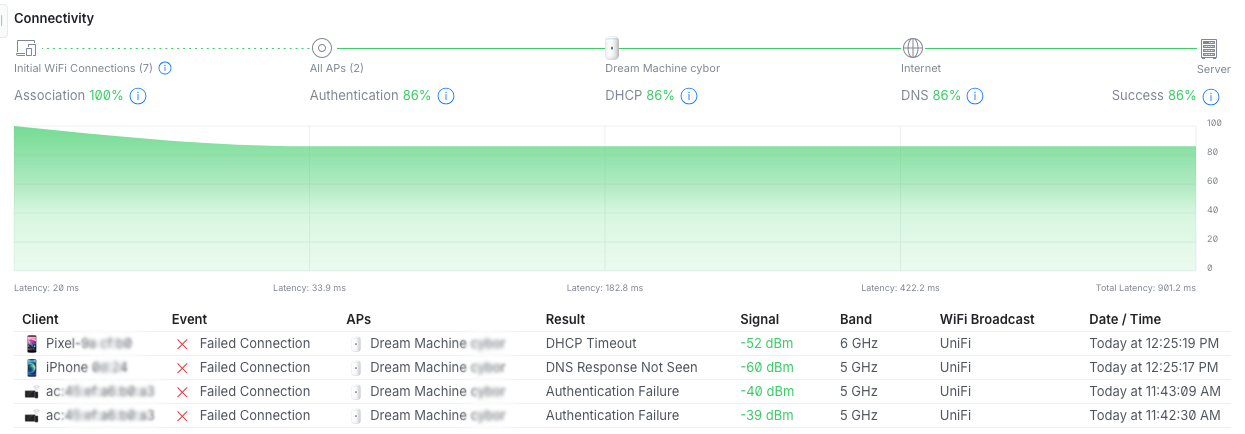
Unlike the WiFi icon on a client device, which typically shows only whether you’re connected or not, or the basic connection logs found on standard routers, this tool provides a far richer level of insight. It acts as a diagnostic dashboard, tracking performance on a client-by-client basis, highlighting potential issues for each device, and even displaying the latency associated with each event:
- Association
- Authentication
- DHCP
- DNS
What can we learn from these?
Association
It’s quite normal to see the Association check at 100% because it’s rarely a WiFi issue, even when the WiFi gets the blame! This step shows that clients have successfully associated with the wireless network, but it does not mean they can pass data, as there are other non-WiFi reasons why that might be. As nearly all the time clients can associate with the WiFi. Clients which fail here either have signal issues (too far away) or possibly just need a driver update.
Authentication
The second check here is – Authentication. UniFi here is tracking WPA timeouts and incorrect passphrases. Clients which fail here are normally due to an incorrect passphrase for WPA2/3 Personal. This is best fixed by going into a client and ‘forgetting network’ and adding the network back in, taking extra care when entering the passphrase. There is no point here in wasting time rebooting the router!
DHCP
Clients require an IP Address to be able to access resources on both the local network and on the internet. UniFi is tracking DHCP latency and DHCP timeouts. Clients failing here have failed to obtain an IP address from the DHCP server. Some clients may at this point just disconnect from the network, while others may report ‘Connected – No Internet’. In my opinion, both actions from clients are not overly helpful in diagnosing the issue and often cause incorrect diagnostics. This check is looking for DHCP packets going from a client and seeing if there are replies back from the server. This can be for several different reasons: is it a VLAN issue and does the correct VLAN extend all the way to the access point, is the DHCP server not running, or is there a configuration issue with the DHCP server, e.g. the pool is not large enough or the lease time is too long. The tool also shows the latency of DHCP packets, so high latency may also indicate an issue with the DHCP Server.
DNS
As well as a client needing an IP address, a client also needs to be able to resolve friendly address names into IP addresses. This is done using DNS (Domain Name System). When the problem is not the WiFi, it is probably DNS! UniFi is tracking DNS response failures and DNS response times. Repeated DNS failures are likely the cause of either an incorrect DNS server address given to clients through the DHCP Server settings or the DNS server is either overloaded or malfunctioning. This can be resolved by using a different DNS Server. High DNS latency can be resolved by using the UniFi gateway as a local DNS resolver and cache and then pointing the UniFi gateway to a nearer DNS server or a faster DNS server.
Conclusion
The UniFi Connectivity tool turns the WiFi is broken into, I know exactly why the WiFi is not working, and then empowers a network admin to assist the frustrated user.
Do you want to know more about setting up, managing and diagnosing UniFi WiFi, then come and learn more on the UWA training course. Find the latest dates here.