 LinITX Blog Ubiquiti & MikroTik Wireless Networking Experts

As part of Unifi’s new site manager, Ubiquiti officially added Fabrics to the stable update branch, making it easier than ever to manage Unifi at scale. In this blog, I will run through what Fabrics is, why it’s so helpful, and how you can configure it.
A Fabric is essentially a centralised control plane for managing multiple sites. Where this improves over Unifi’s traditional method is that we now have zero-touch deployment and policy enforcement options, thanks to the new Orchestration Engine, allowing us to configure a setting once and then apply it to all new and existing sites within the Fabric.
Initial Setup & Account Security
Ubiquiti have an excellent help article outlining how to get started with Fabrics, including creating a Fabric, adding sites to a Fabric, and setting up Identity & Consolidated People Management, so I won’t cover this again here. I do recommend following Ubiquiti’s advice and ensuring a single company-managed UI account is the owner of all sites; while not essential for Fabrics, this is required for the Site Magic SD-WAN feature. It also helps with Role-Based Access Control (RBAC) and general account security if the site owner is a dedicated “break glass” account only known to senior technical team members, and day-to-day accounts are synced from your third-party identity provider.
What I haven’t seen much documentation for is configuration best practices with the new Orchestration Manager tools. These tools currently comprise Blueprints and Canvas, with Device Templates coming soon.
Blueprints
Blueprints can be used for quick, zero-touch site deployment with settings bespoke to your organisation. For best results, I recommend picking one of your sites, ensuring it has all the desired configuration across Networks, Internet, Policy Engine, and firewall zones and policies (firewall policies cannot be edited within the Fabric yet), and cloning this when creating a new Blueprint.
You will need one Blueprint for each type of site you have, for example:
- Large sites and small sites with different VLANs.
- Basic and Secure sites with different protection and content filtering policies.
TIP: Ensure your VLAN ID is consistent across all Blueprints and sites (e.g. STAFF VID is always 10 at every site, GUEST VLAN is always 20, etc.), as this will be important when we get to configuring Canvas.
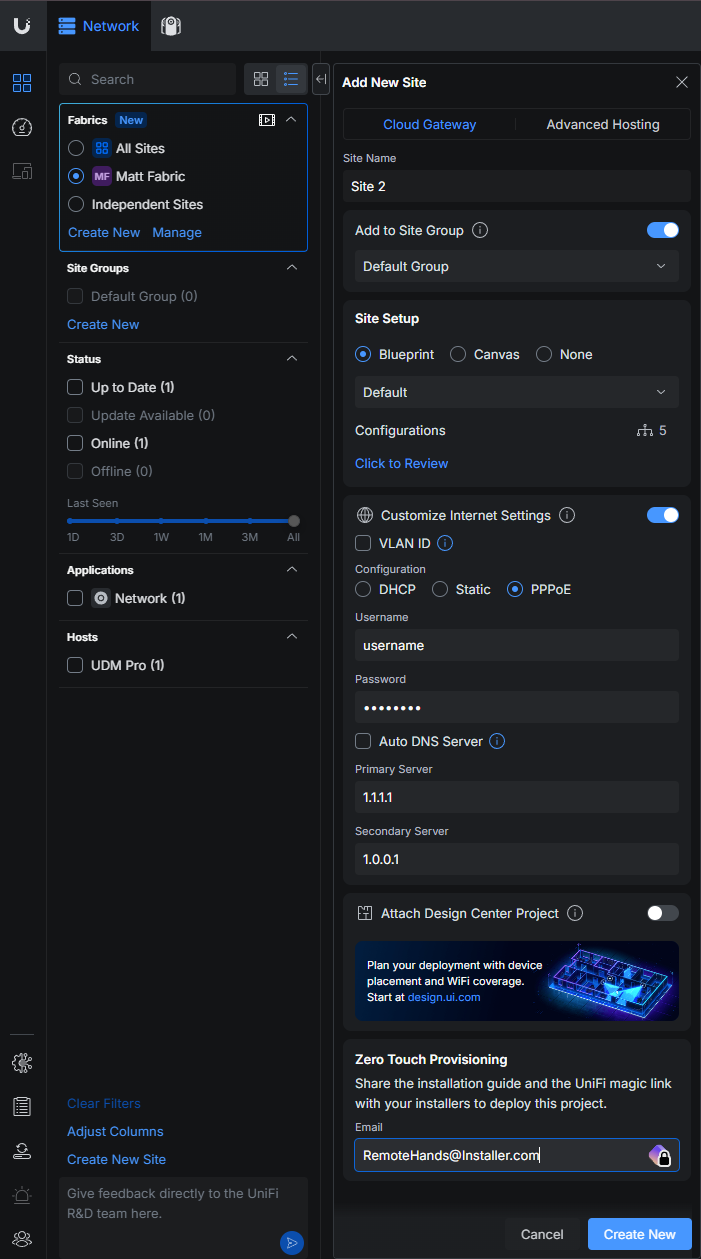
New sites can be pre-provisioned in the Fabric using the Blueprint, and installers can receive a Unifi Magic Link with instructions on how to quickly set up the new site with all Blueprint settings preconfigured and custom WAN settings per site.
Canvas
Where Blueprints help speed up initial site deployment, Canvas are designed for configuration compliance and policy enforcement. Some settings should always be applied to all sites, and until now, the only way to check compliance has been to check all sites manually.
Canvases are configuration settings managed in the Fabric that are synced to site devices. These synced settings cannot be modified via a site’s Network application.
Recommended use cases for Canvas are:
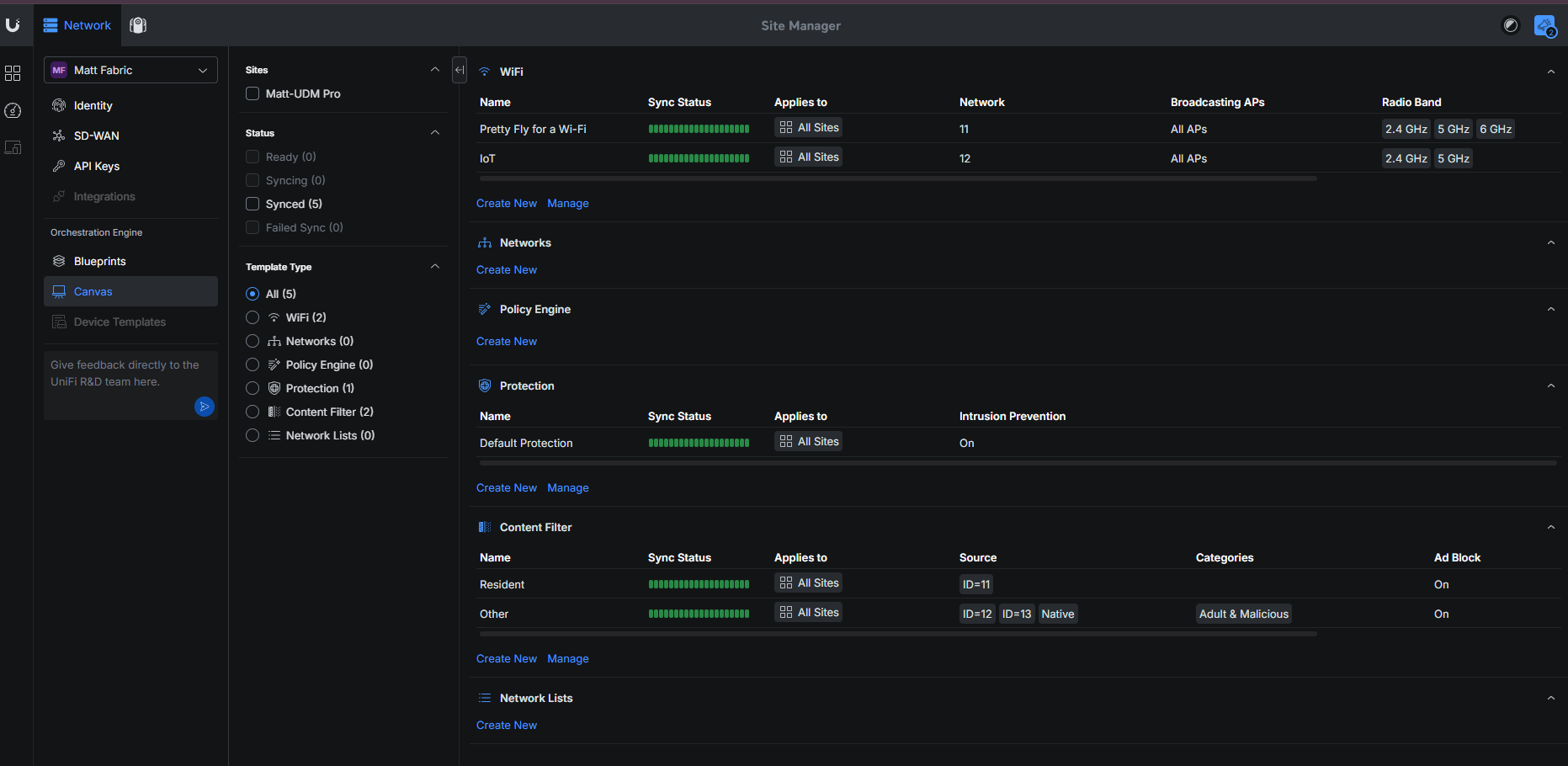
- Consistent WiFi SSID and password across all sites.Also, a quick way to change a WiFI PSK across all sites.
- Enforced Protection policies such as region blocking, encrypted DNS, and intrusion prevention system (IPS).
- Managed Content Filtering across all sites in one policy.
Canvas example in Site Manager:
Settings are then locked within the site’s Network application and must be edited from the Canvas:
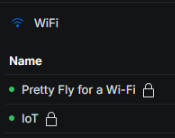
As you can see, Canvas policies are applied to VLAN ID, not Network name; this is why consistent VLAN IDs across sites are critical when using Fabrics.
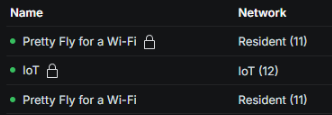
It’s also worth noting that to avoid duplication, any setting you manage via Canvas must not be configured in a Blueprint. For example, WiFI configured in both Blueprint and Canvas results in duplicate SSIDs:
Device Templates
Currently unreleased and “coming soon”. Ubiquiti describes this as follows:
“Orchestrate device configurations and enable zero-touch provisioning across complete deployments”.
Hopefully, this will include port profiles and default switch layouts. Keep an eye out for future blog posts once this feature is released.
Limitations
Fabrics will inevitably save multi-site admins a significant amount of time. However, it is a new feature with some limitations to be aware of in the current iteration:
- Networks synced via Canvas share the same IP subnet across all sites. While not necessarily an issue for guest or out-of-band networks, any networks in SD-WAN would require unique IP addressing at each site. For now, my advice is to avoid deploying Networks via Canvas; set them in a Blueprint and manually update the IP addressing once the site has been provisioned.
- No zone-based firewall or policy engine Canvas options. This is why it is important to copy a well-configured, existing site for your Blueprint.
- Currently, only one Identity Provider per Fabric is supported. For most internal IT teams, this should be fine. Ubiquiti is aware that MSPs need to integrate both the client’s IdP for Unifi Endpoint and their own IdP for administration; this was discussed during the Unifi World Conference in London, and it is on the roadmap for future releases.
Overall, Fabrics is a huge win for Unifi and is worth investing time into migrating existing sites into it.
LinITX Consultancy Services
If you need any assistance migrating to Fabrics, setting Fabrics up for the first time or configuring any of the other Unifi applications, including Network, Talk, Protect, or Access, contact our consultant team, who are happy to help. Please contact us on, 01449 888000 or sales@linitx.com.