 LinITX Blog Ubiquiti & MikroTik Wireless Networking Experts

Have you ever hit a troubleshooting brick wall or been baffled why you can’t use a feature on a MikroTik when you’re logged in as admin with full permissions? Have you been unable to deploy a container, use a tool like Sniffer, or run a script?
If so, then you probably hit the same brick wall as I have many times. No, it’s not broken, and no, you don’t need to netinstall the router. What you have run up against is MikroTik Device Mode.
Though this feature is quite new in RouterOS7, it has been around for some time. This feature still catches me out, and I’m not alone.
Device mode changes what features can and can’t be used on a MikroTik. A user account with full access no longer means you have unlimited control over the device.
Why do we need Device Mode, and why should we use it?
While it might feel like it’s pointless and causing more of a hindrance than a help, device mode is there for a very good reason.
While security can often feel like an inconvenience, it is ever so important.
In this day and age, we need to not only carry out steps to prevent rogue actors’ access, but we should also consider what we can do to reduce what can happen should our security be compromised. The actions bad actors do are so predictable; they use tools like /tools/fetch to download a malicious script, or set up a /system/scheduler to run a task, or enable the socks proxy to create a relay, etc.
By using device mode correctly, you can significantly reduce the attack surface of a MikroTik device. If an attacker were to gain access to a MikroTik, this would reduce the features that can be used and can not be altered without physical access to the device.
Once upon a time, it was acceptable to presume that if you had the admin credentials, then you were completely trusted. In this day and age of attack after attack, this assumption is no longer a good or acceptable security stance to take.
Using device mode, if they are not needed, then tools and services on a MikroTik can be disabled, this stopping bad actors dead in their tracks.
Though it may be an inconvenience for remote administration teams, being able to make changes to device mode requires physical access to the router. This does mean that bad actors can not make changes to device mode to be able to leverage these features. This also means what tools and features are needed before a remote device is installed onsite and device mode is set up.
For this very reason, it’s also important to look at what features are not needed and then use device mode to lock them out and reduce the attack surface of your routers. Even with firewall filter rules protecting the device, it’s possible to make a mistake or not have unlimited input rules from a trusted network, so reducing the open ports by disabling services using device mode will also increase the security of your devices.
What is device mode?
Device mode is a persistent underlying security state that controls what RouterOS is allowed to do.
RouterOS devices ship with one of four device modes. Each of these four modes has a subset of features that are not allowed. The default mode is advanced. Even the advanced mode has features that are not enabled. The table below shows the various tiers of MikroTik Device Mode and exactly which features are available for use.
The following table provides a comprehensive breakdown of feature availability across Home, Basic, Advanced, and ROSE modes:
| Feature / Property | Home | Basic | Advanced | ROSE |
|---|---|---|---|---|
| Bandwidth Test
/tool bandwidth-test /tool bandwidth-server /tool speed-test |
❌ | ❌ | ✅ | ✅ |
| Containers (/container) | ❌ | ❌ | ❌ | ✅ |
| Email
(/tool e-mail) |
❌ | ✅ | ✅ | ✅ |
| Fetch
(/tool fetch) |
❌ | ✅ | ✅ | ✅ |
| Hotspot
(/ip hotspot) |
❌ | ❌ | ✅ | ✅ |
| Install Any Version (see below) | ❌ | ❌ | ❌ | ❌ |
| IPsec
(/ip ipsec) |
✅ | ✅ | ✅ | ✅ |
| L2TP
/interface l2tp-server /interface l2tp-client |
✅ | ✅ | ✅ | ✅ |
| Partitions (/partitions) | ❌ | ❌ | ❌ | ❌ |
| PPTP
/interface pptp-server /interface pptp-client |
✅ | ✅ | ✅ | ✅ |
| Proxy
/ip proxy) |
❌ | ❌ | ✅ | ✅ |
| RoMon
/tool romon |
❌ | ✅ | ✅ | ✅ |
| Routerboard Settings
/system routerboard |
❌ | ❌ | ❌ | ❌ |
| Scheduler
(/scheduler) |
❌ | ✅ | ✅ | ✅ |
| SMB
/ip smb |
✅ | ✅ | ✅ | ✅ |
| Sniffer
/tool sniffer |
❌ | ✅ | ✅ | ✅ |
| SOCKS Proxy
/ip socks |
❌ | ❌ | ✅ | ✅ |
| Traffic Generator
/tool/traffic-generator /tool/flood-ping /tool/ping-speed |
❌ | ❌ | ❌ | ❌ |
| ZeroTier (zerotier) | ❌ | ❌ | ✅ | ✅ |
Allowed versions.
The allowed versions parameter is a list of versions of RouterOS that MikroTik consider secure. This is independent of the version of RouterOS installed and works as a separate protection layer to prevent a bad actor from downgrading the device to a version of RouterOS with a known vulnerability. If an upgrade to RouterOS updates this list, then the new updated list applies and will not get reverted to a previous list on a downgrade of RouterOS.
Using Device Mode
Device mode configuration can only be viewed and configured from the CLI. After making a change, the router needs to be powered cycled using the power cable or by pressing the reset button physically on the unit.
Before you find yourself stuck, it’s a good idea to check device mode before deploying routers in the field.
To see the current device mode configured:
/system/device-mode/print
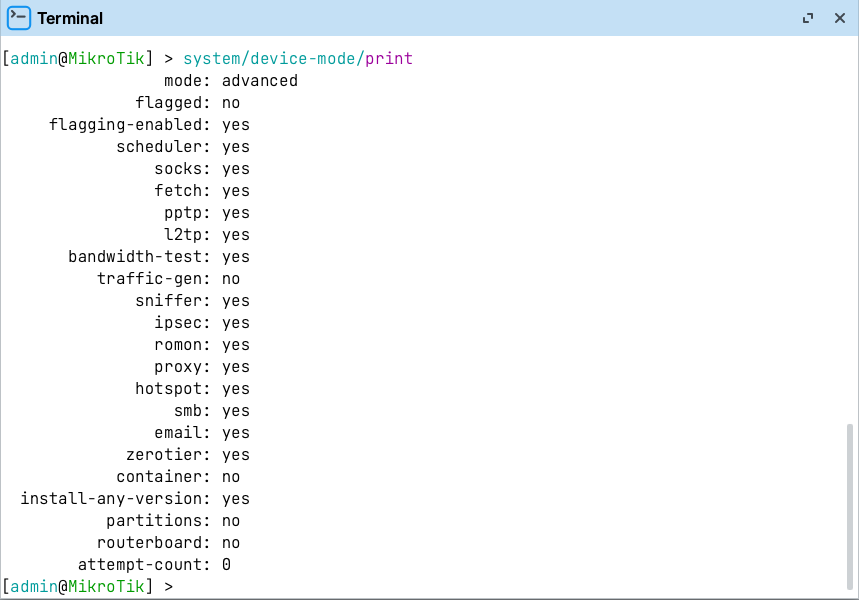
If you need to enable a feature, then this is also done in the CLI. The code below shows how to enable container support on a MikroTik
/system/device-mode/update container=yes
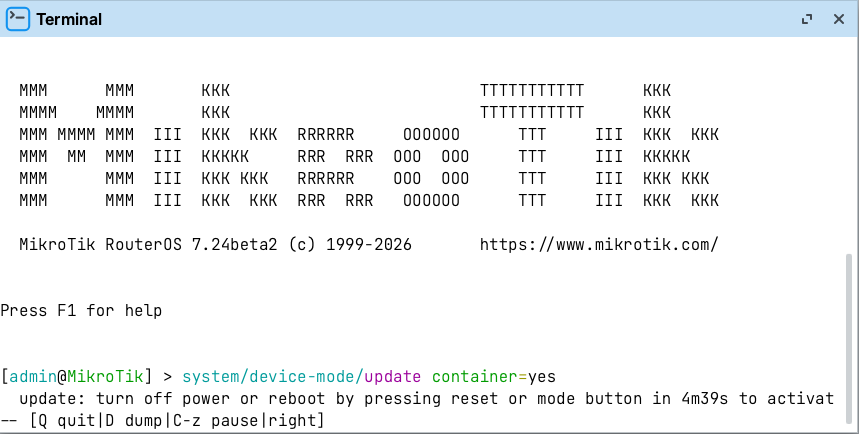
Upon passing the command, the router needs a reboot by physically pressing the reset button or removing the power cable from the unit. This can not be done using a reboot from the menu. This must be done within 5 mins of making the changes to Device mode.
Jono’s thoughts on how to use it.
Device mode represents a shift in network security and something that we should not shy away from. It forces us to think about security in a different way.
When setting up a new router, I would recommend that you look at the device mode. I can list several features from that list above that I would never use on my networks and disable them in device mode before deploying the router into production.
Things I would consider disabling using device mode:
- Bandwidth test
- Fetch
- Hotspot
- Traffic generator
- Proxy
- PPTP
- Proxy
- SMB
- SOCKS Proxy
Every environment is different, so I’d recommend reviewing the list and identifying which services you never need to use.
Also, I recommend that you look at what is not enabled by default and ask yourself do I really need these on the router? It’s not all routers that I use /tool/sniffer, and it’s also not all routers I may need traffic generator, but if I need them for diagnosis regularly on that router, then make sure they are enabled.