 LinITX Blog Ubiquiti & MikroTik Wireless Networking Experts

As network engineers, our toolkits define our efficiency. When we are out in the field, having a portable application that runs on a mobile device without a laptop is very useful. Enter the UniFi WiFiman app. This is an ad-free, intuitive app which runs on both iOS and Android mobile devices. Though many different apps do very similar things, what I like about this app is that it includes many tools in one package, making it very convenient to use.
In this blog, I’m going to explore some of the features that are found in this app, how they can be used, and look at why and when it’s best paired with the WiFiman Wizard hardware.
Before we look any further at the WiFiman app, it’s important that we look at the underlying platform limitations. iOS and Android handle hardware-level wireless diagnostic API access very differently, and this means that the iOS and Android versions of the WiFiman app function very differently.
Android
Android gives developers relatively open access to the system’s Wi-Fi framework; because of this, the WiFiman app on Android is powerful without any additional hardware. The Android version of the App can pull:
- Live channel graphs showing neighbouring APs, SSID, BSSIDs and channel widths. When used with an Android device with 6GHz support, this can also be viewed for the 6GHz band.
- Continuous real-time signal strengths from neighbouring access points.
The Android catch:since Android 9 (Android Pie), the operating system implemented WiFi scan throttling. Apps are restricted to four scans every two minutes. While Android still gives more raw data than iOS devices, this OS-level throttling means that ‘real-time’ reporting is very laggy.
iOS
Apple strictly locks down its coreWLAN and WiFi scanning APIs due to user privacy and tracking concerns. This means an iPhone running WiFiman is very limited in what it can see.
- No Neighbour scanning.
- Information and detailed metrics for the currently connected Access Point only.
The exception is with iOS devices which are also equipped with LiDAR (currently iPhone Pro models). These iOS devices can utilise the floor plan mapper and use Apple’s ARKit to map out the building walls along with a signal heatmap in real-time.
WiFiman Wizard: Why Do You Need It?
To bypass Apple’s strict API lockdowns and eliminate Google’s Wi-Fi scan throttling, Ubiquiti engineered the WiFiman Wizard (WM-W). (Shop here)
The Wizard is a portable, battery-powered, passive hardware receiver that pairs with your smartphone’s Bluetooth. It contains dedicated 2.4 GHz and 5 GHz radios paired with a Bluetooth LE (BLE) chip. This means instead of relying on your phone’s internal Wi-Fi chip and constrained operating system APIs, the Wizard scans the local RF environment itself and streams the raw telemetry directly to your phone via Bluetooth.
The Benefits of the Wizard
- Bridges the iOS Gap: This is the only way to get real-time channel graphs and BSSID breakdowns. It effectively grants your iOS device the same diagnostic capabilities as an Android phone.
- Bypasses Android Throttling: For Android users, the Wizard completely circumvents Google’s foreground scan throttling. Because data is fed continuously via BLE, you get high-frequency, real-time updates without any delay.
- Saves Phone Battery: Continuous internal Wi-Fi scanning kills a smartphone battery. Offloading the passive scanning to the Wizard’s internal battery protects your phone’s battery during periods of extended use
- Client-Accurate Antenna: The Wizard uses a low-gain omnidirectional antenna designed to mimic the exact RF performance profile of a typical smartphone, ensuring your survey data reflects actual end-user experiences.
What can be done without the Wizard?
- On Android: Almost everything except for OS limits on the number of scans. Android can still scan neighbours natively within the OS restraints. 6GHz scans are only available on Android.
- On iOS: You are limited to testing internet/local throughput, running Layer 2 subnet discovery sweeps, using Teleport VPN, and tracking the single connected AP’s roaming metrics or AR floorplan maps.
What can the WiFiman App deliver for you?
Below I will look at some of the features found in the WiFiman app and how they can be useful
Speed Test Tab
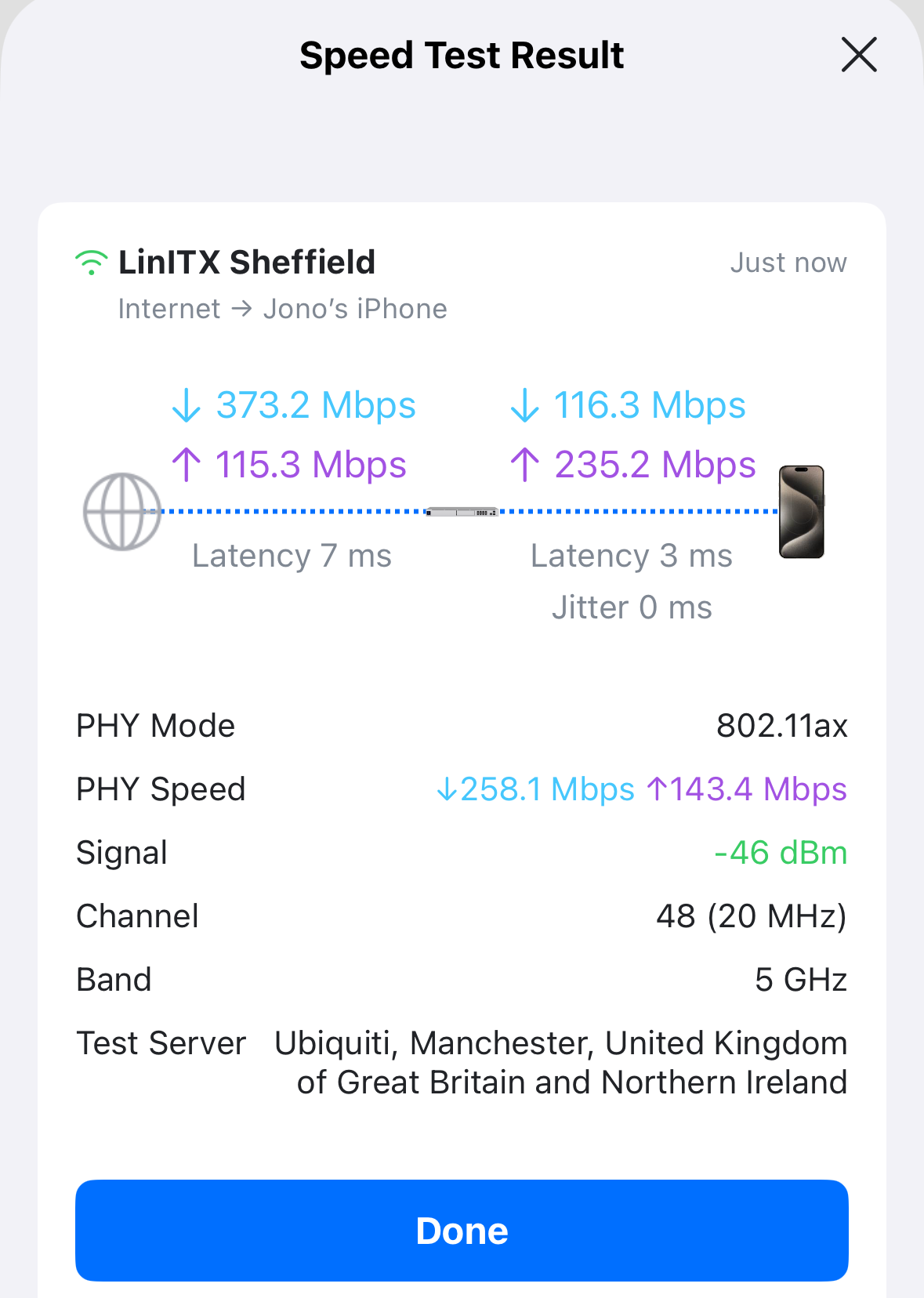
The Speed Test tab starts by showing a simple topology of the network, including the public IP address of the connection you’re on, the IP of the gateway and the IP address of the mobile device.
There is a speed test function, which will run an internet speed test. When coupled with a UniFi full stack deployment, more useful speed tests can be run by running a speed test to the gateway, routers and other network devices. This is essential when diagnosing where the bottleneck is in the network, as more often than not a full end-to-end speed test from wireless client to the internet has so many other factors why it is not what is expected. If another mobile client is on the same network and has the WiFiman app open then an over the wireless client to client speed test can also be run. The internet speed test can also be run when connected to a cellular connection and not just when on WiFi.
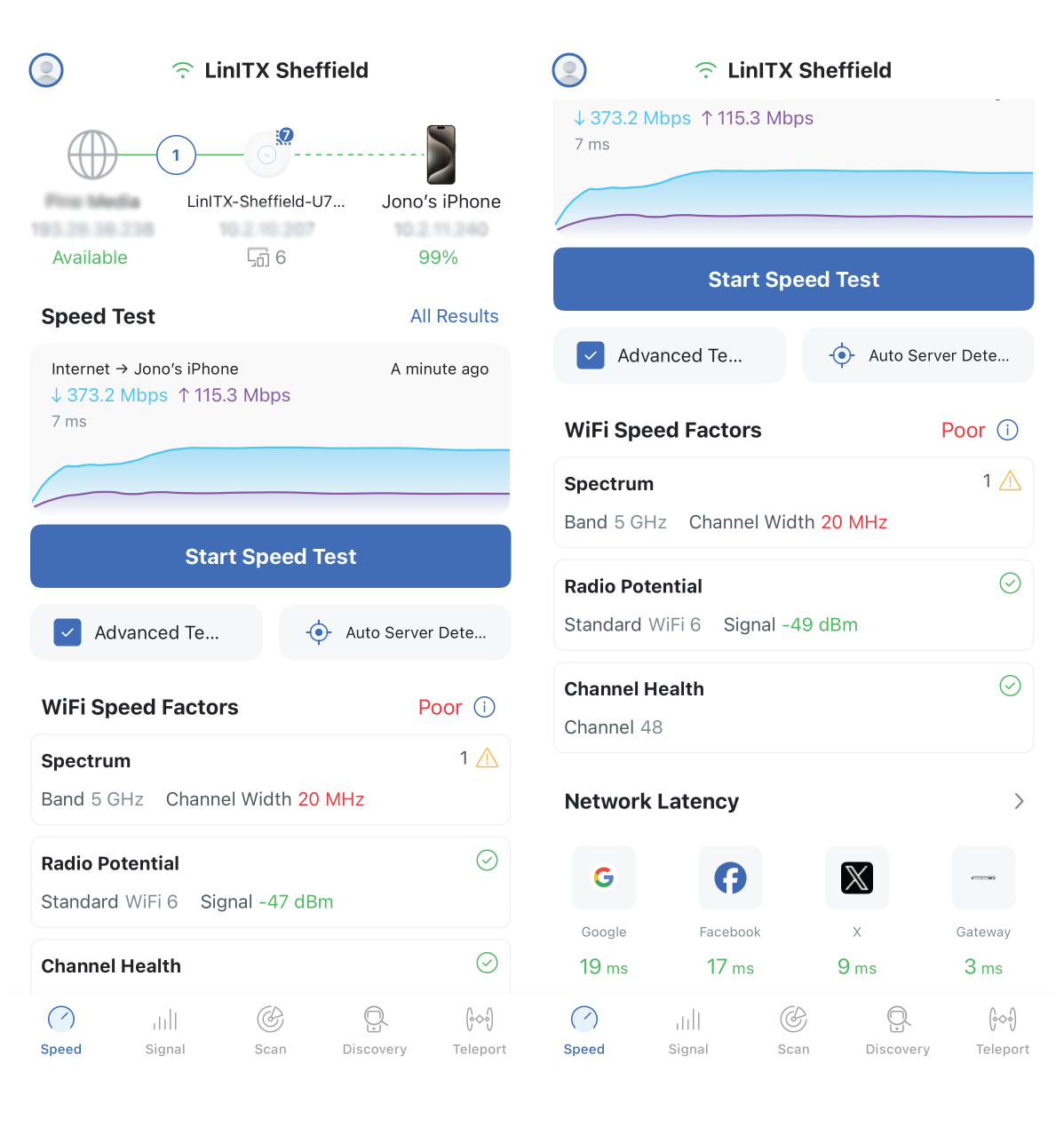
The speed tab also shows several factors which may affect the WiFi quality as part of the WiFi Speed Factors section and settings about the wifi.
Spectrum information about the band connected to eg 2.4GHz or 5GHz
Radio Potential – a score based on the PHY mode (WiFi standard) of the network connected and the signal strength of the wireless signal from the AP
Channel health – Shows the channel connected to and scores the channel based on channel utilisation
Network latency – to common services on the internet along with latency to the internet. Clicking on the latency enables the user to view a simple line graph of the jitter of these, and this list of services can be customised.
Signal Strength Tab
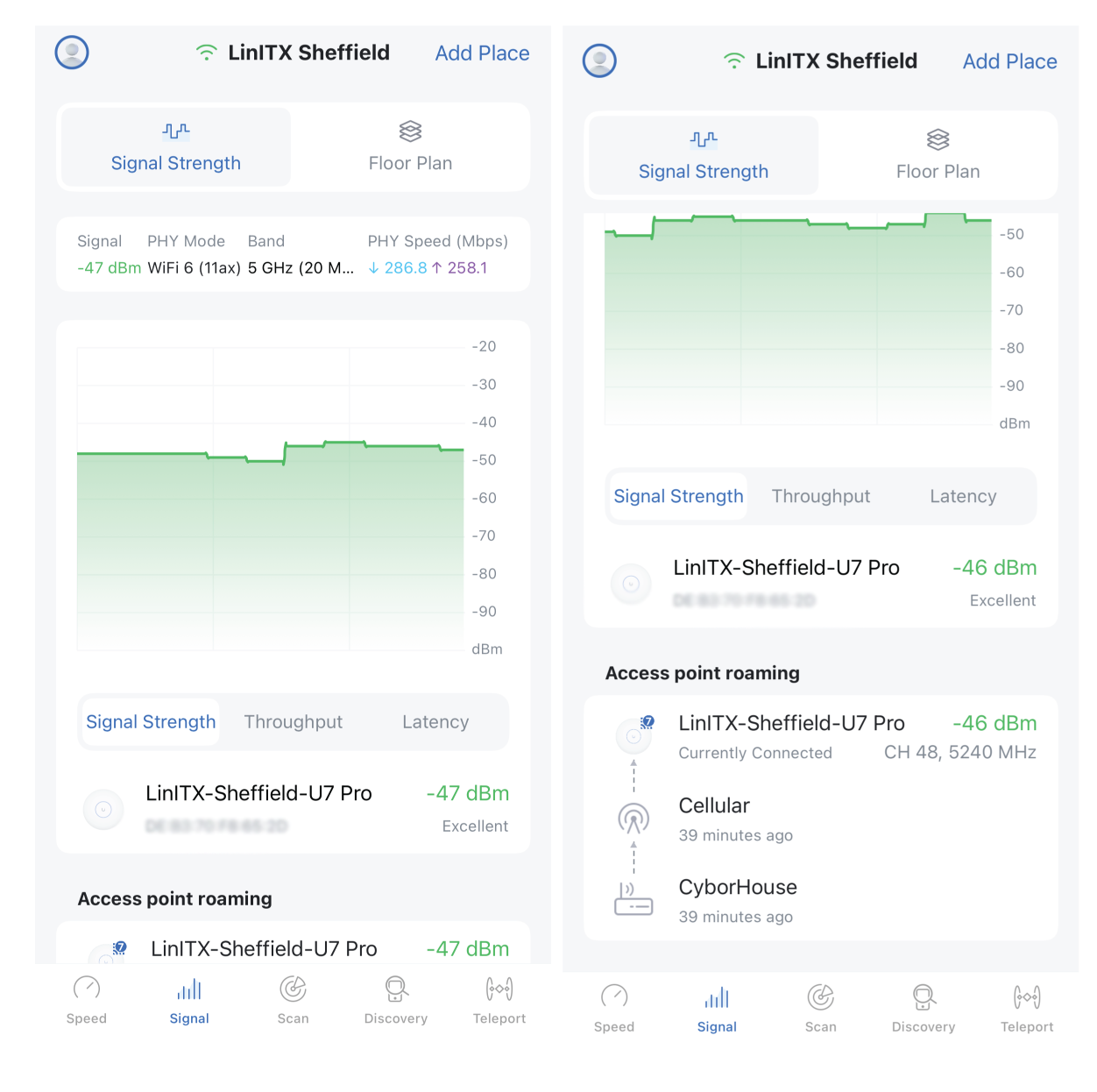
The signal strength tab of the WiFiman app will show in real time the signal strength of the Access point currently connected in the form of a live graph. This is useful when checking power levels while walking through the coverage area
When coupled with a UniFi gateway, then throughput to the gateway and latency to the gateway can also be graphed in real time.
The signal tab also includes some of the same wireless connection metrics from the speed tab and additional metrics too
- Signal – the signal strength to the current AP
- PHY Mode (wifi generation), e.g. WiFi 6
- Band (5GHz or 6GHz etc) and also includes channel width eg 20MHz or 40MHz
- PHY Speeds (Physical Layer Rate): This is the max theoretical data rate at which the client and the AP can communicate based on the current MSC index, spatial streams and channel width. In reality, the real world throughput is half the PHY Rate
Real Time Roaming and BSSID Transitions.
The signal tab features access point roaming. In this section, the app will show you exactly when your client has roamed from one access point to another as it moves throughout your deployment. It displays the following information related to the roam:
- Time stamp of the roam
- Source BSSID and Destination BSSID
- The RSSI threshold that the client dislocated with the old AP and Associated with the new AP.
This is very useful to confirm that you have the correct signal strengths and cell overlap throughout the deployment. This Roaming data will also show when your client roams off the WiFi and onto the cellular network for internet access. This shows that there is not enough overlap or you’re outside the coverage area of the wireless network.
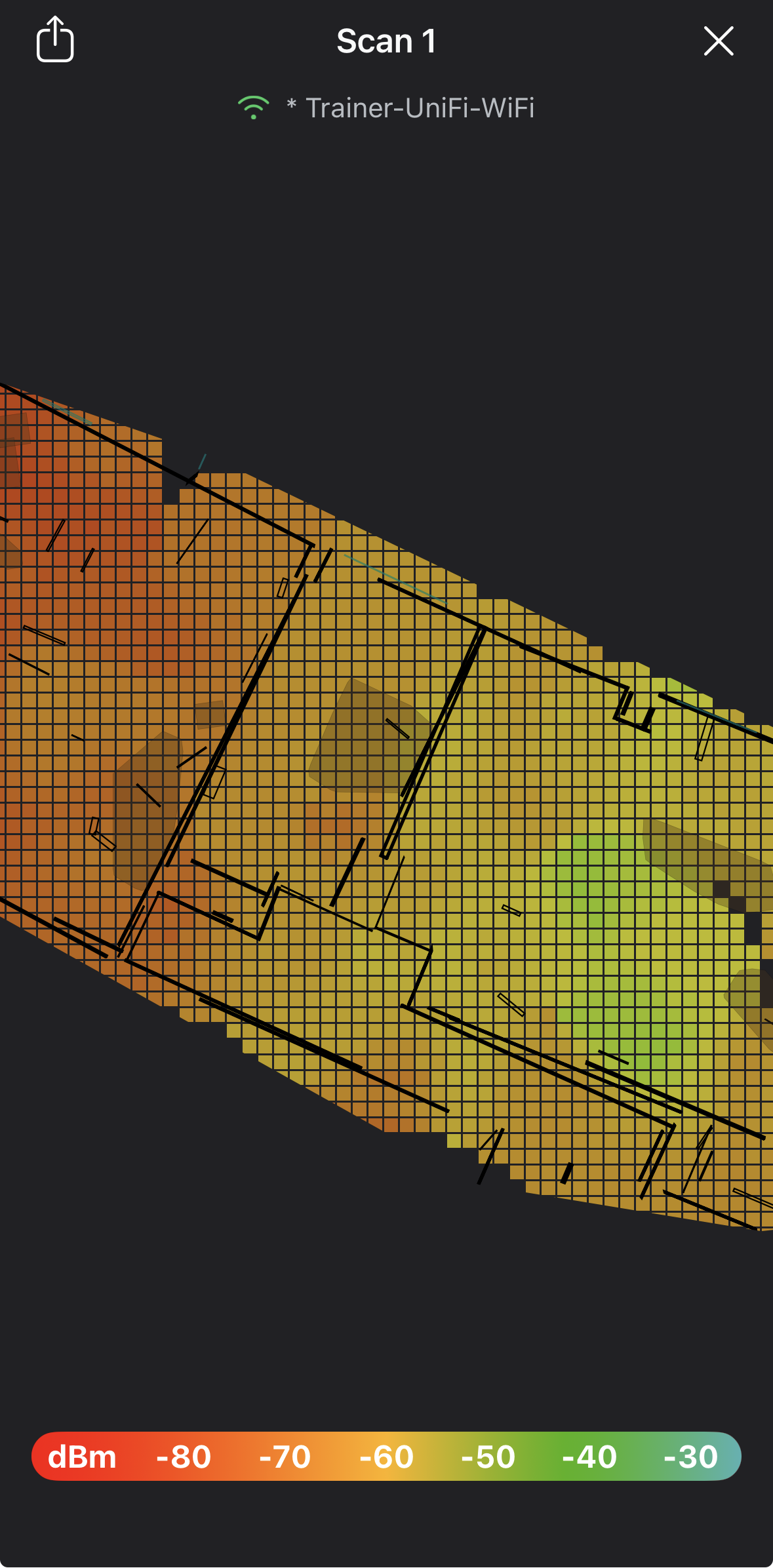
The signal tab also includes the floor plan mapper. This is best used with an iPhone Pro with LiDAR support and allows you to record the signal strength in different areas in the form of a heatmap to help you further visualise your wifi coverage and understand how clients will roam throughout your deployment. When used with an iPhone with LiDAR support, the floor plan mapper will draw out the walls of the area being mapped. This makes it even easier to visualise the area.
Scan
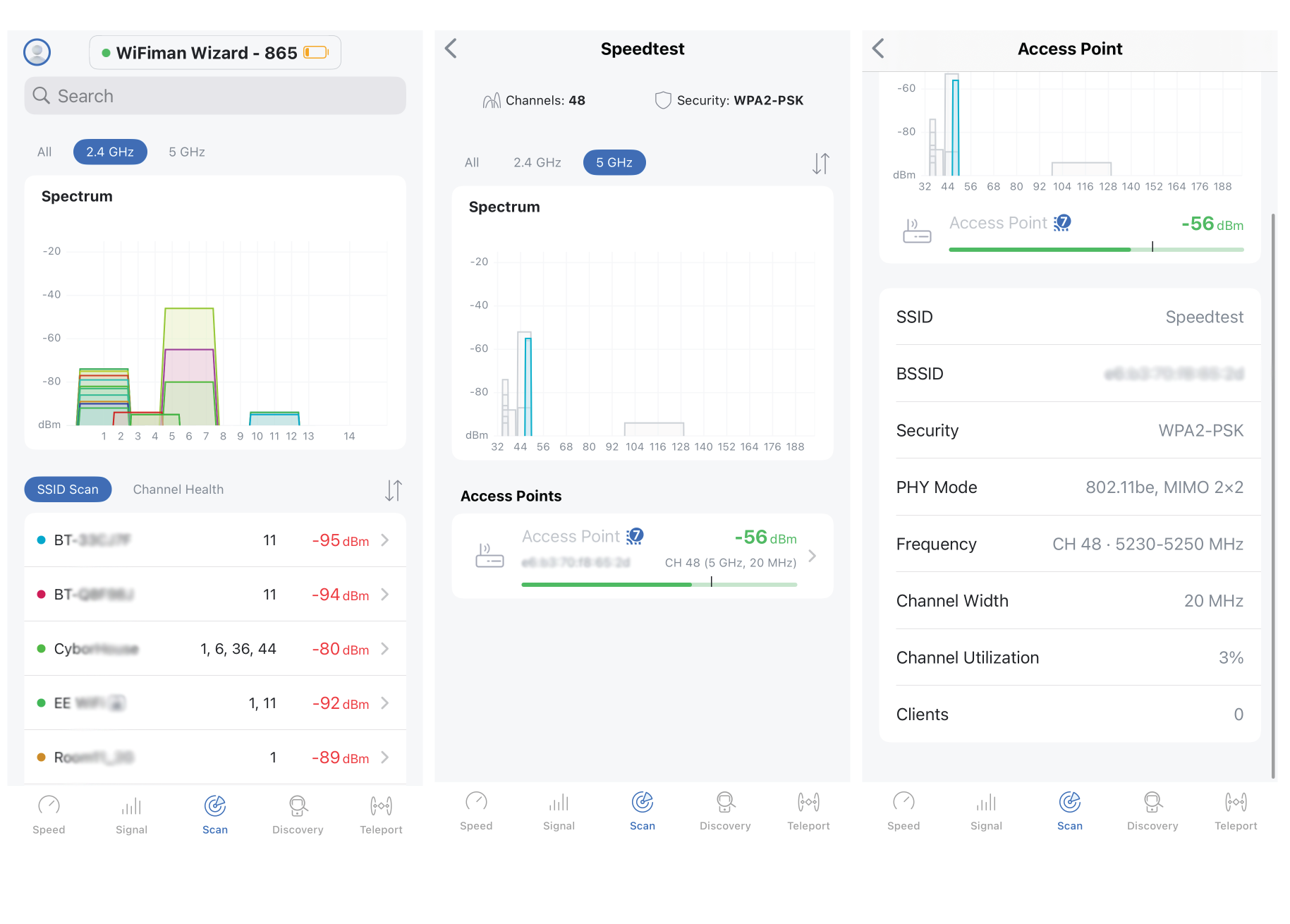
The scan tab shows neighbours by carrying out a wireless neighbour AP scan and will display all the APs (both in the same SSID and other SSIDs and the information about these. When using the Scan tab on an iPhone, the WiFiman wizard is required, and on an Android device the scanning is limited as we have already discussed. Here, the app is scanning for other wireless networks in range and detecting their 802.11 beacons to gather information about the wireless network. This is one of my go to sections on the WiFiman app as this information can tell us so much about the state of the wireless environment around us. Once scanning, a summary of all wireless networks around is shown, along with the very familiar bar charts showing all the wireless networks and their relative signal strengths. On further navigation through this section, clicking on an SSID will then show all APs broadcasting that SSID and will highlight each BSSID on the bar graphs. Then clicking through further on each BSSID shown will then show an abundance of data about that specific AP. All of this scan data is shown for all vendors’ APs, not just UniFi, which makes this tool so powerful.
Device Discovery
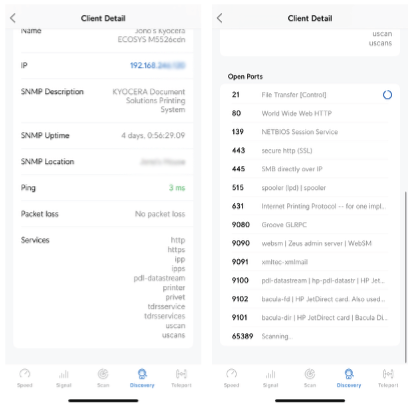
The device discovery tab will display information about all devices in the same subnet (local network), including IP address and other identifying information. This can have many different uses, including discovering other UniFi devices to assist with device adoption issues quickly. From this device discovery, you can go one step further and click on a device, which will bring up much more information about the device, including common open ports. A further complete port scan can be run. This is very useful when considering internal network security, as you can see which devices are running insecure management protocols which may need investigating and disabling or devices which may be a risk to the local network which are either not supposed to be there or should be moved into another VLAN.
Jono Verdict.
Yes, there are many other apps for mobile devices which also provide similar functionality, but having all these functions in a single app I find very helpful as it saves switching between apps. When coupled with the WiFiman wizard the speed and the scan information displayed is very useful especially as the information from the wifi scanning is vendor neutral, and all this from a device which is so small and portable I find this an invaluable tool in my toolbox and I never found with out it (Yes I do take it with me on Holiday to check with wifi where we are staying!)